
How we can add content page in marketplace
Easy addition of content pages on a marketplace website with Yelo gives you the flexibility to update content whenever you want. You can do it simply by adding a title, description, and route for the content page.
- Log in to the Yelo Admin Dashboard, where you can view your sales, profit, merchant stores and other data.
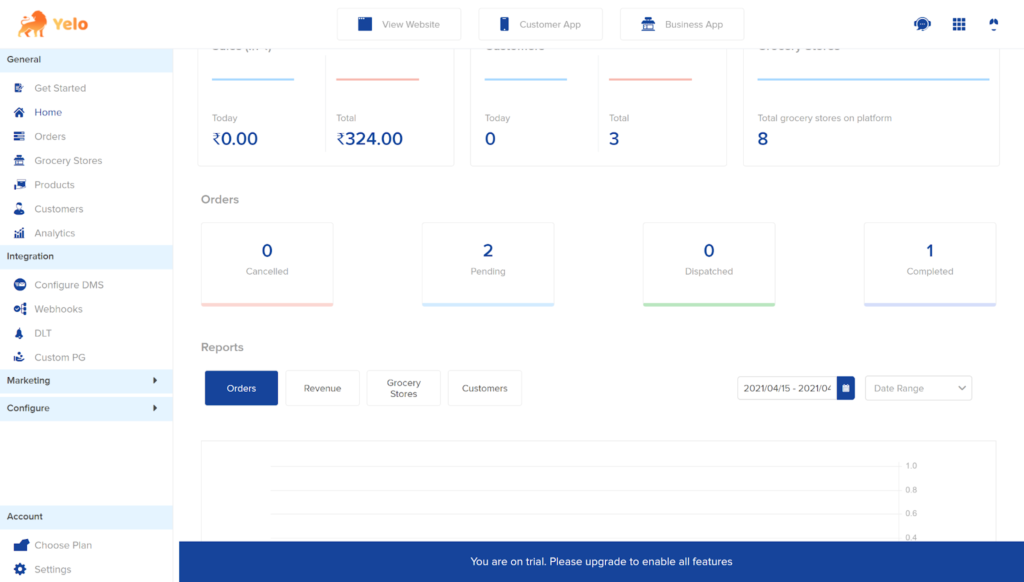
- On the right side of the dashboard, find the ‘Configure’ option.
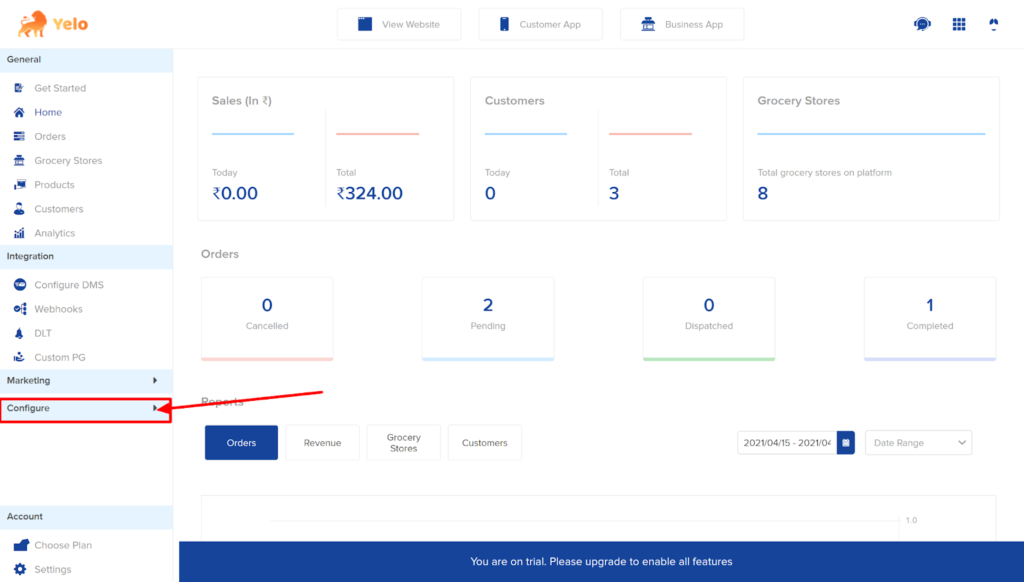
- Open the configure drop-down menu and click on ‘Design.’
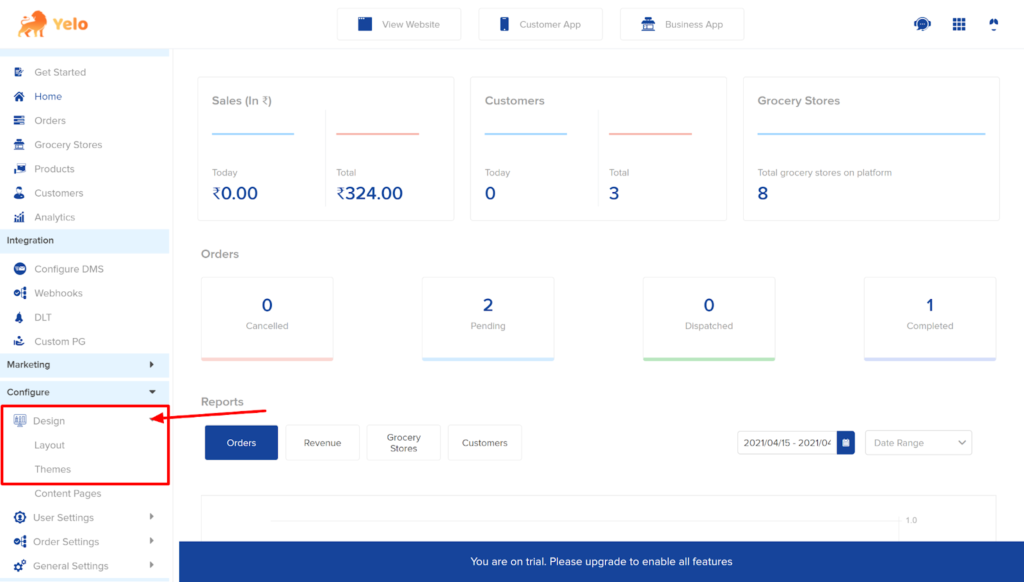
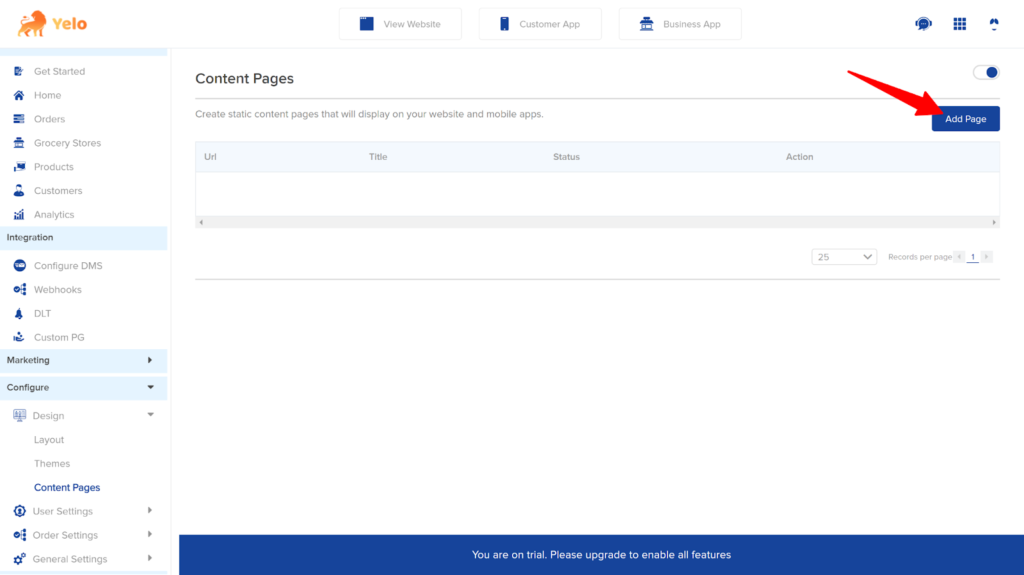
- Next, click on the Content Pages option, and a new page will appear.
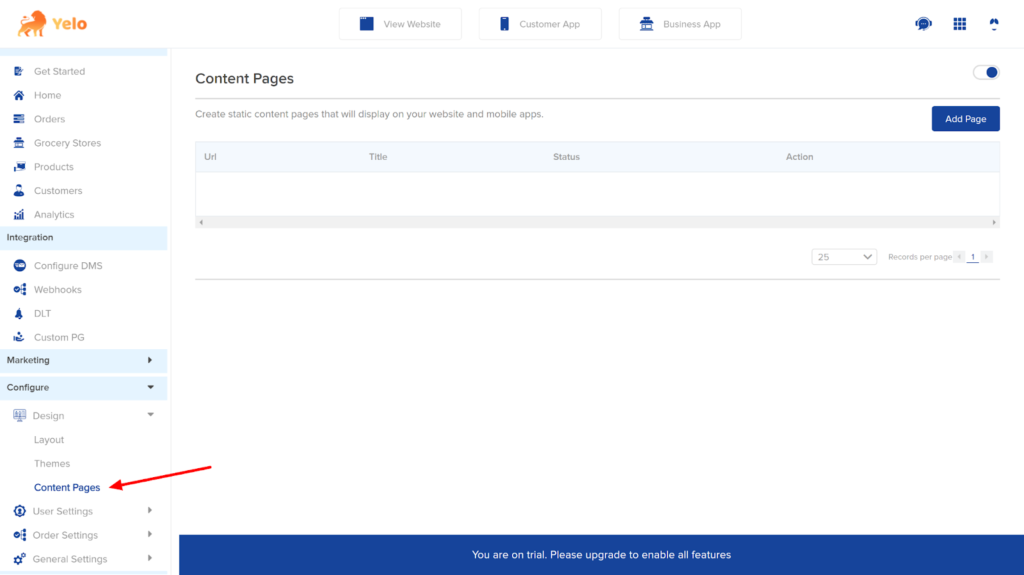
- Click on ‘Add Page’ to add new content pages.
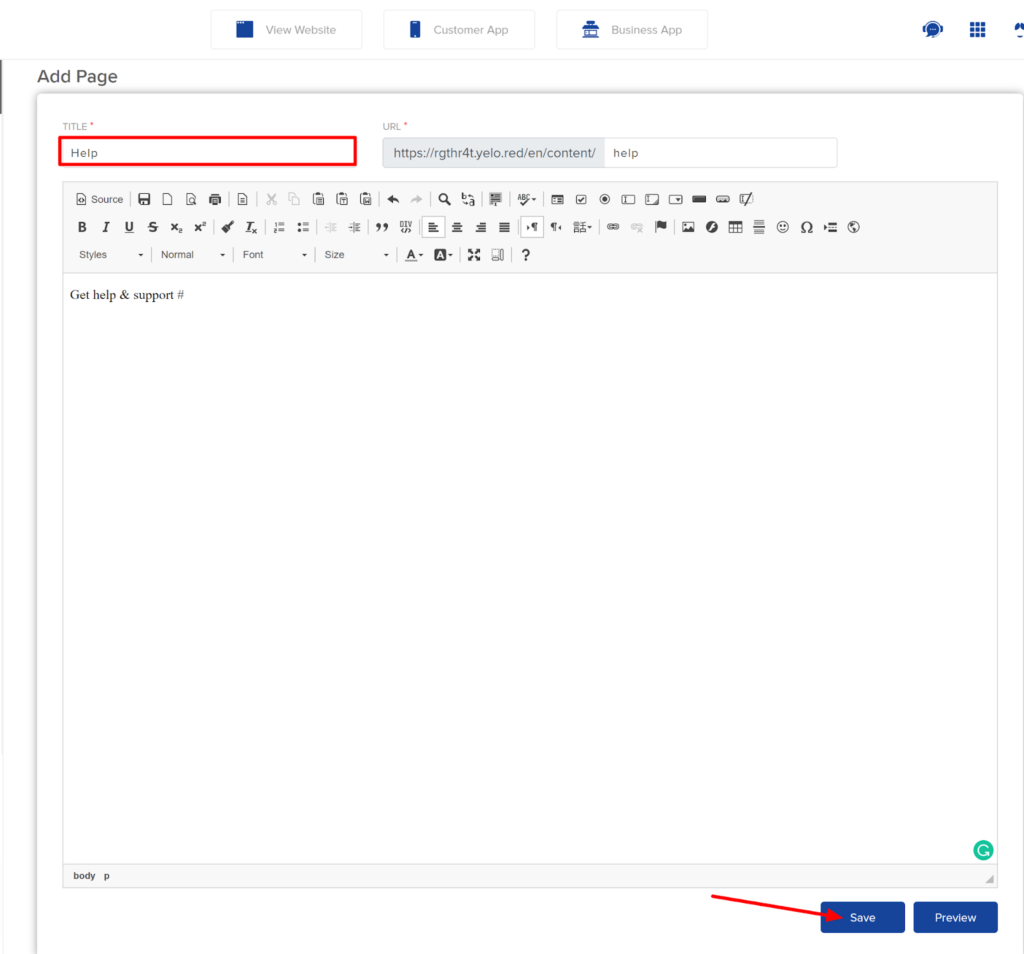
- Next, enter the page title, content description and route for the content page in the respective spaces provided. Click on Preview or save.
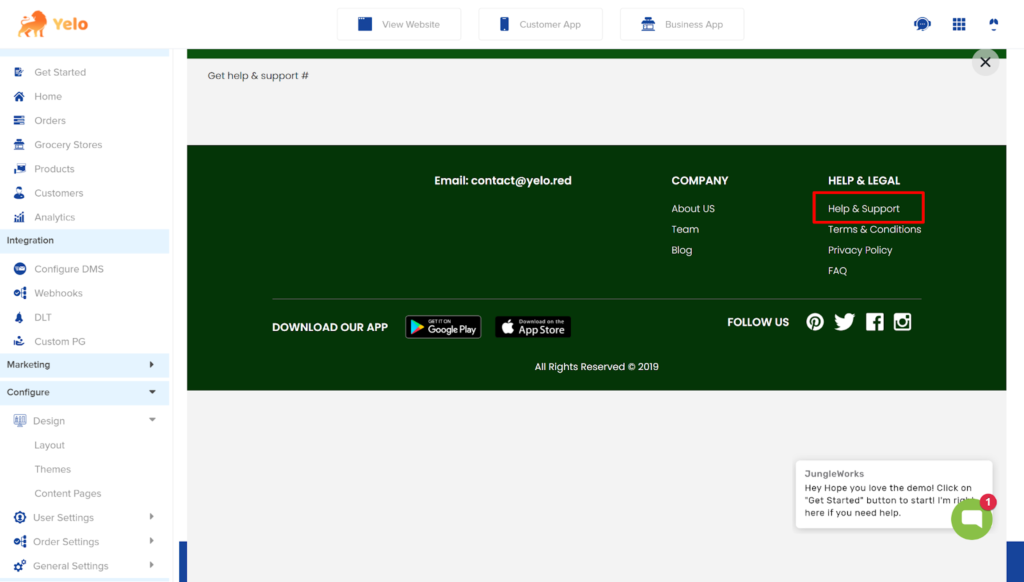
- On clicking preview, you can view the location of the content page in the footer section. This is where your content page link will appear in the footer.
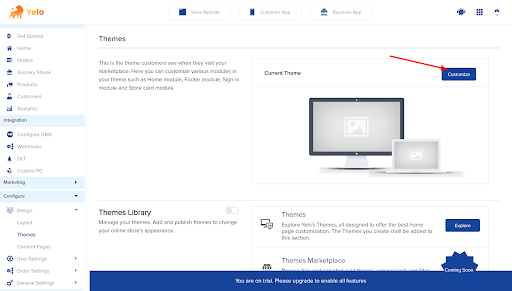
- In case the page does not appear in the footer section. You can do it manually. Go to the dashboard. Click on Configure > Design > Themes.
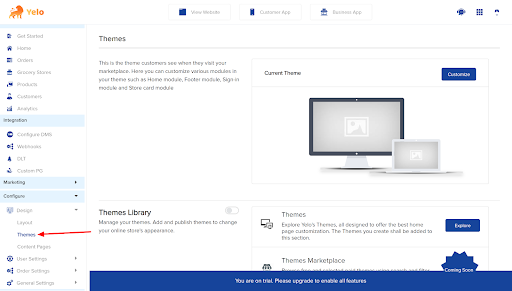
- Next, click on the ‘Customise’ option.
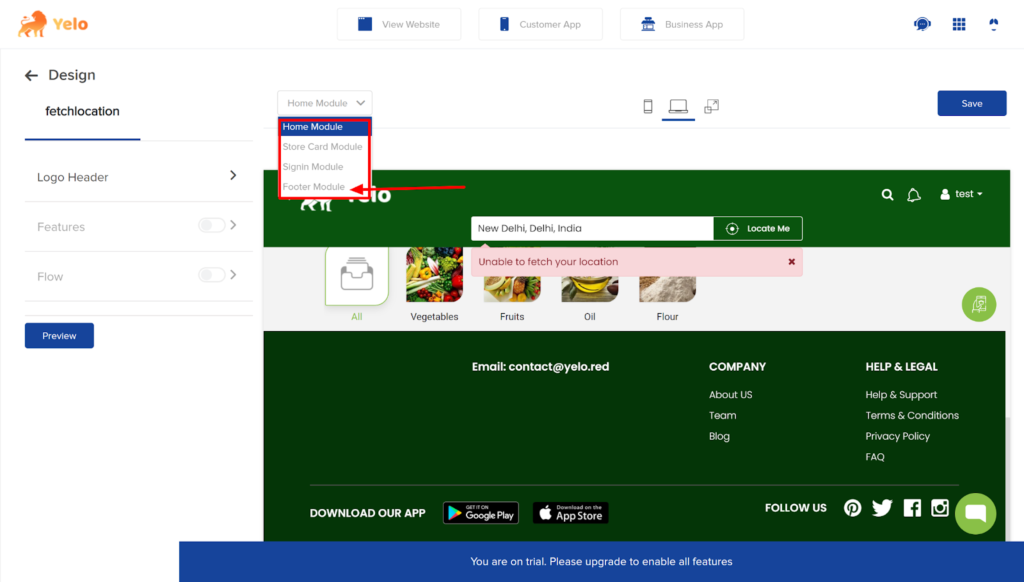
- A new page will appear. Here open the drop-down menu and choose a footer module.
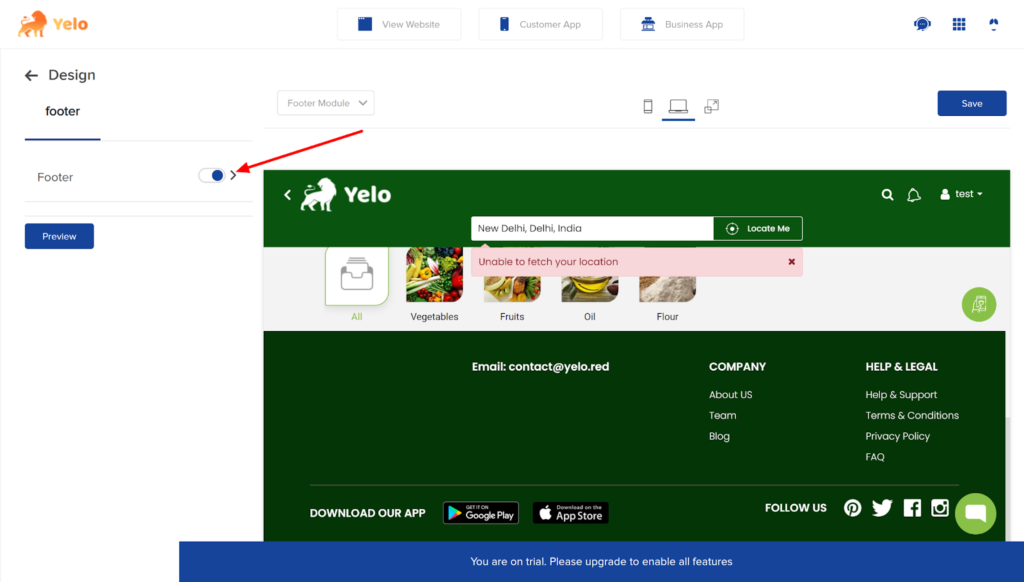
- On choosing a footer module, enable the footer button on the left side of the dashboard.
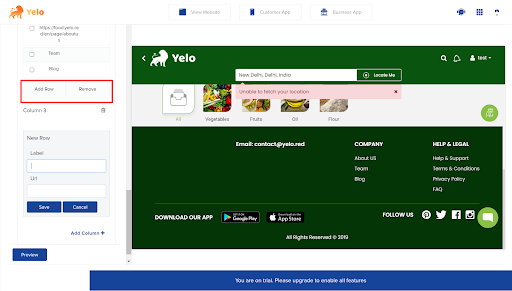
- Scroll down the same column and click on add row. Now, add a label and the URL to your content page. Click ‘Save’ to view your page.
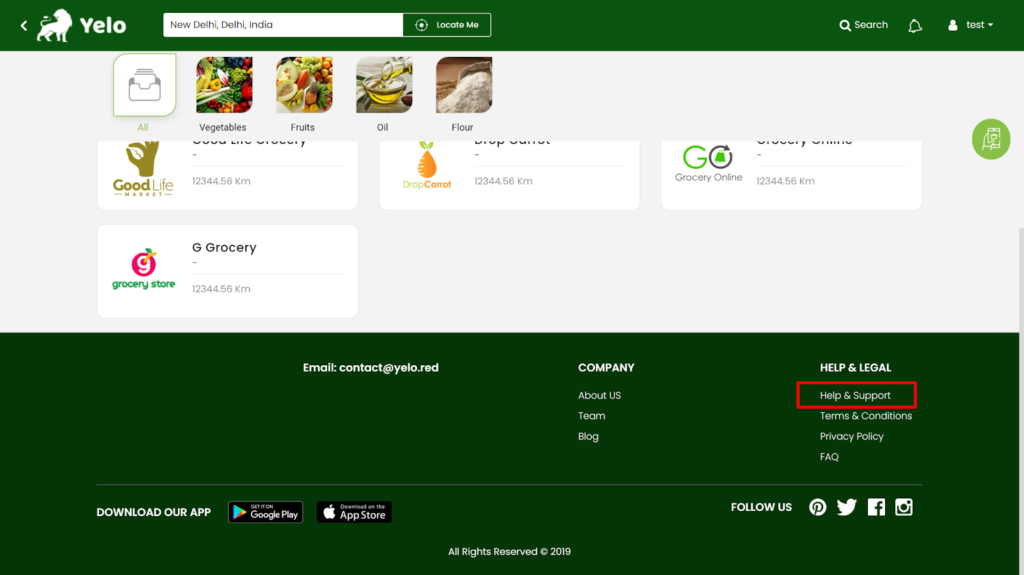
Now, you know how to easily add a content page to your marketplace both manually and directly.
Leave A Comment?