
Recurring task
Your customers can use the subscription-based model with this Yelo feature. You can set up recurring tasks and allow customers to place orders on a regular frequency
Here is how to do that:
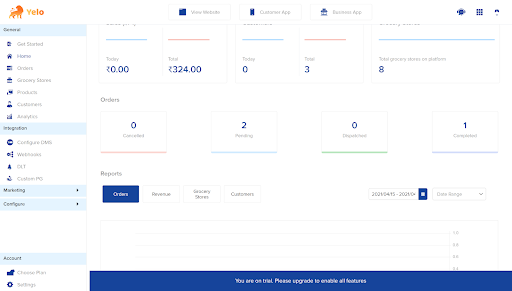
- Log in to the Yelo admin dashboard, where your monthly sales, revenue and orders can be viewed.
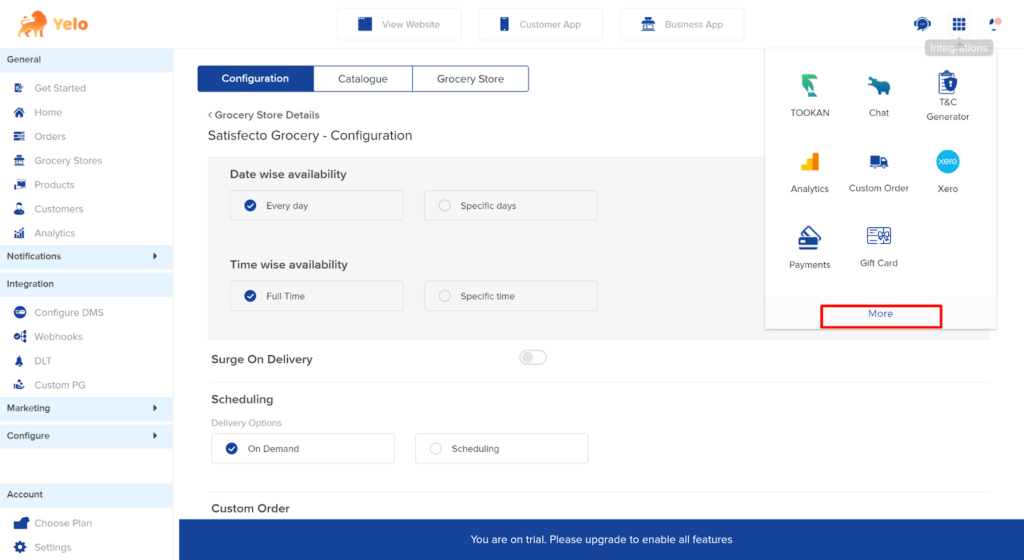
- On the top right side of the dashboard, click on the ‘Integration’ and then on ‘More’ to find more options.
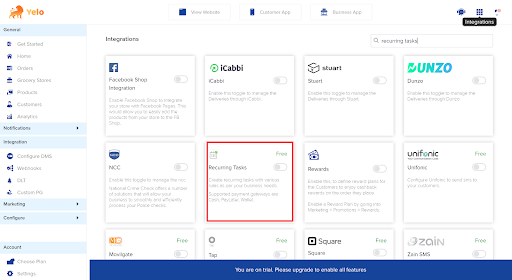
- Scroll down to find ‘Recurring Tasks’.
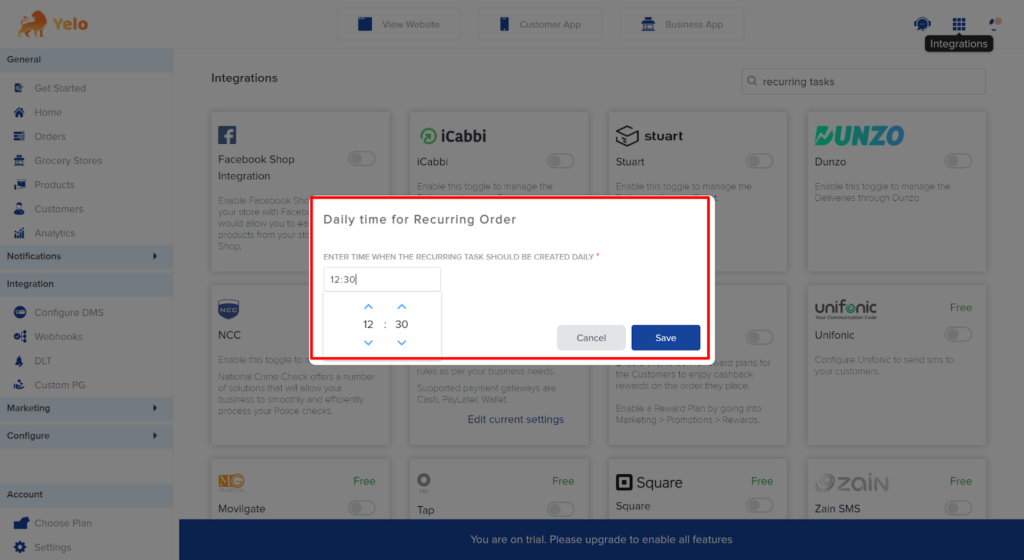
- Enable the toggle button ‘ON’. A pop up will appear. Set the time slot for creating the recurring tasks. Click on ‘Save’.
- In the right sidebar, find the Merchant store tab and open it.
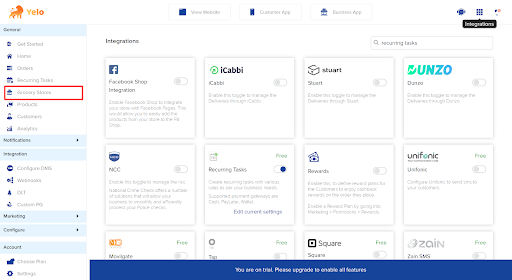
- Click on the Grocery store for which you want to set up the subscription and it will take you to their page.
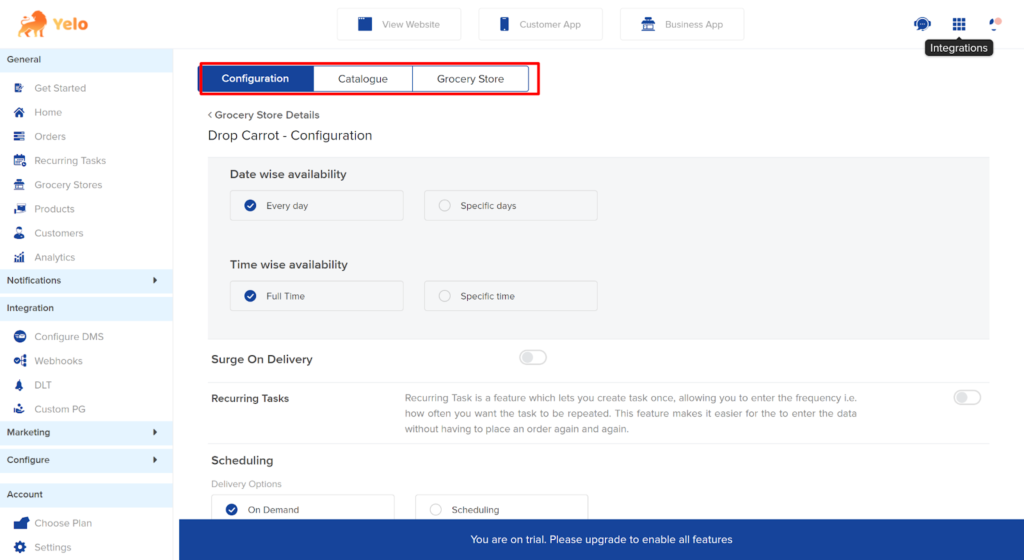
- Enable the Recurring task button configuration.
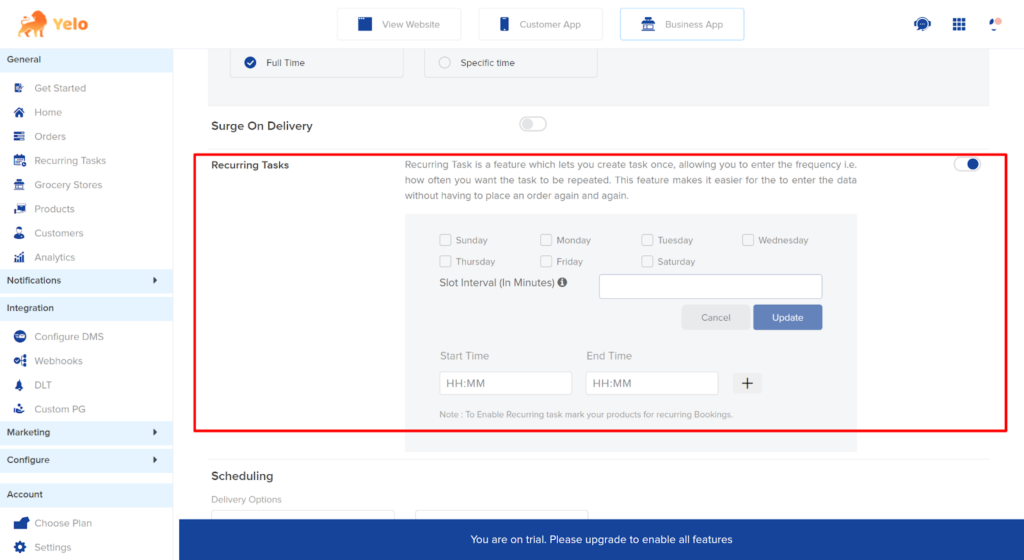
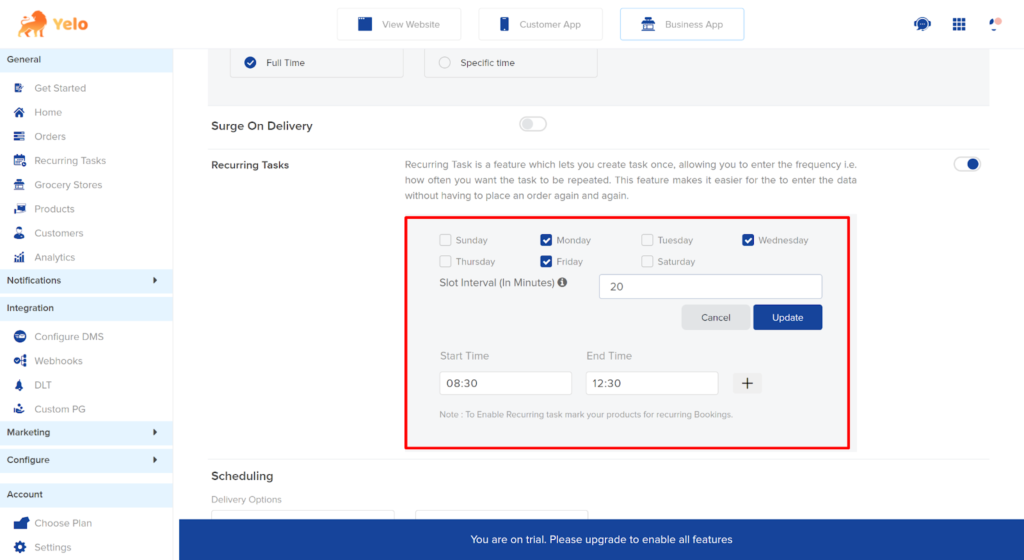
- Set the date, time for the task and the slot for the recurring tasks.
- Click on the ‘catalogue’ tab and choose the products for which you want to set up the recurring task.
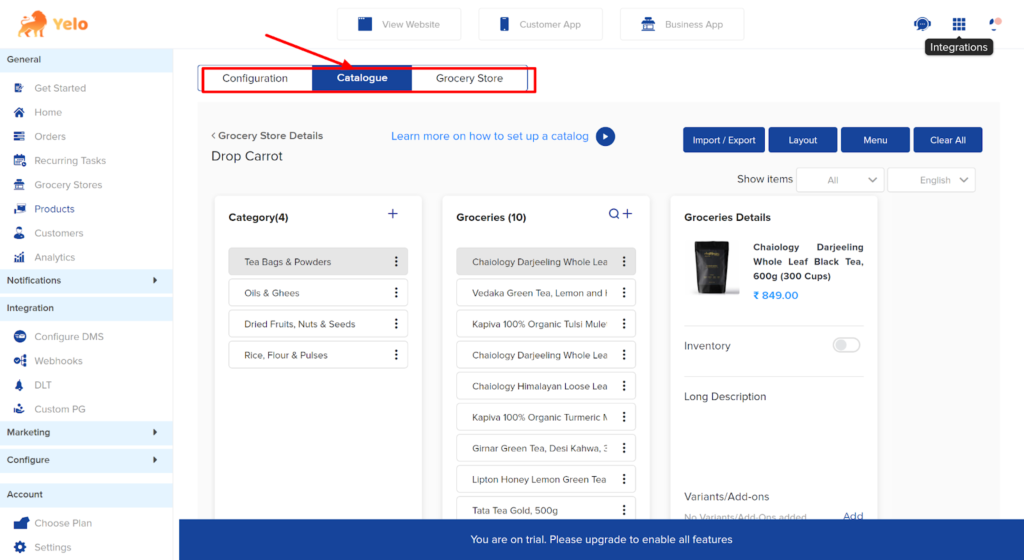
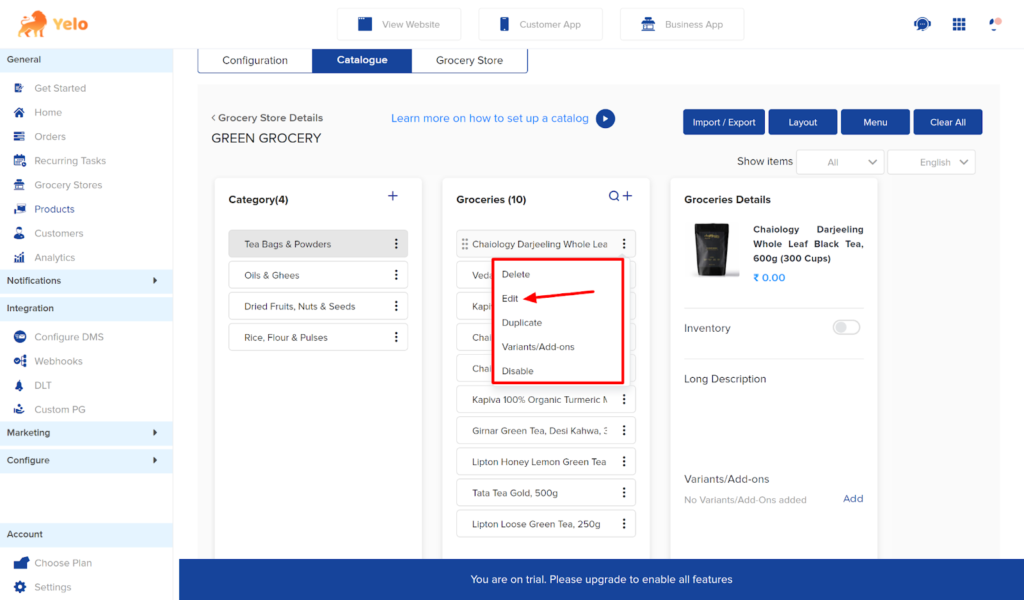
- Click on the three dots against the product that you want to add recurring tasks and select Edit.
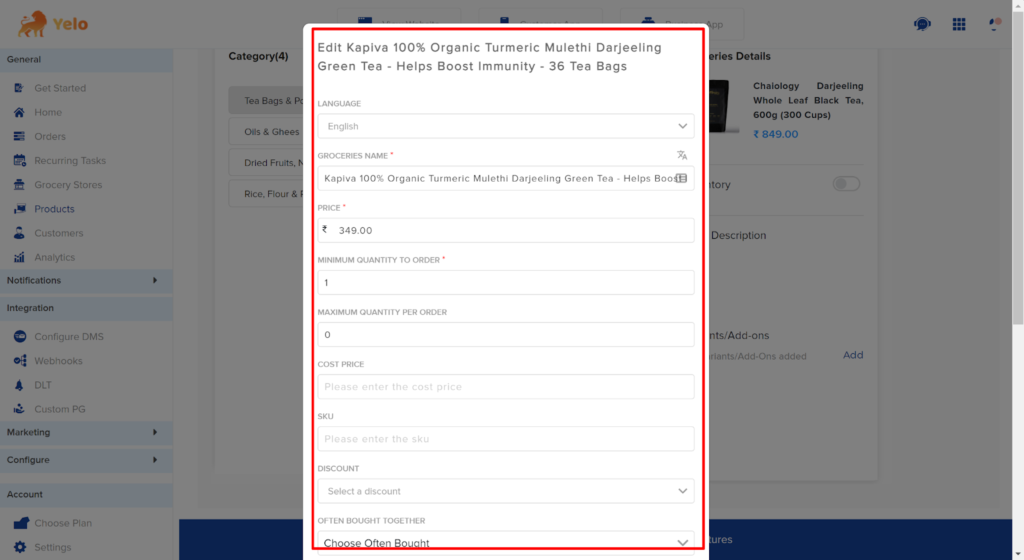
- A new box will appear for editing the products.
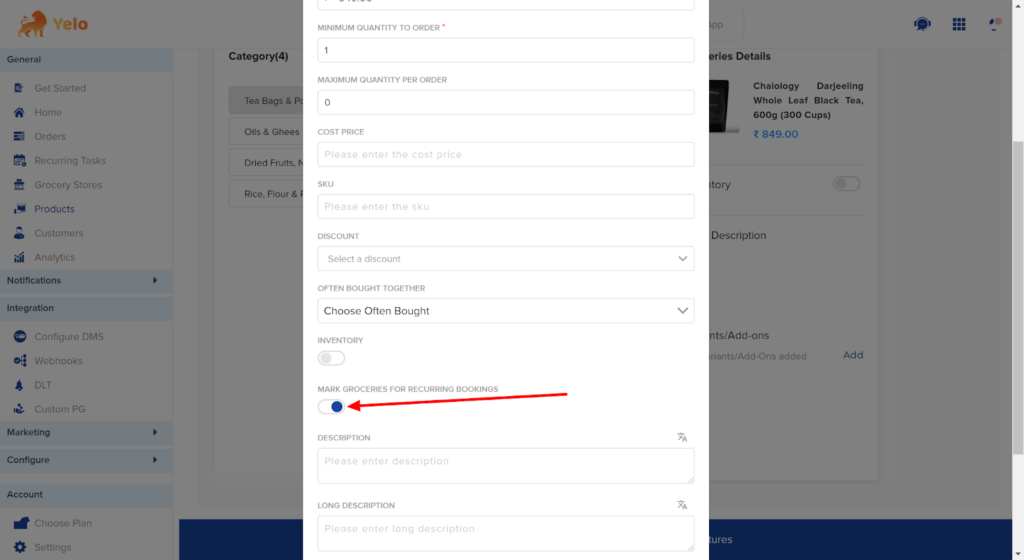
- Scroll down and toggle on ‘ Mark Groceries For Recurring Bookings. Click on ‘Save.’
- If the customers choose the merchant for which you have set up the recurring task, they can use the subscription model to order.
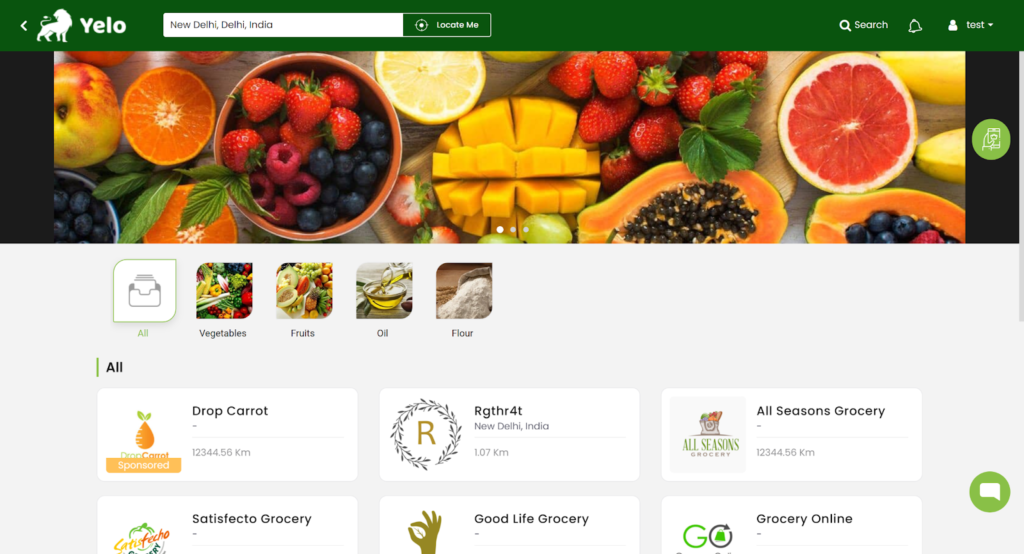
- They can add the products to the cart and checkout.
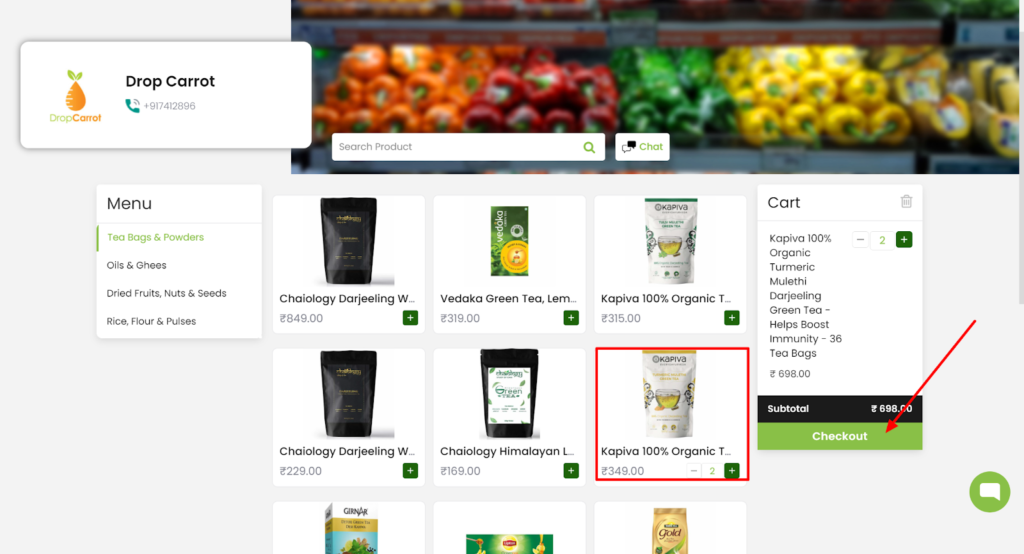
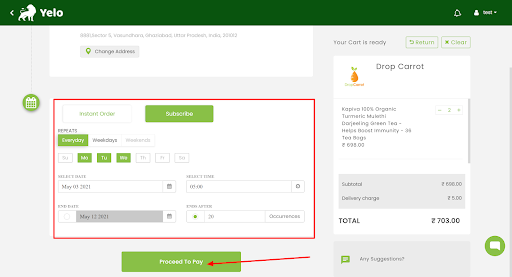
- Once they click ‘Checkout’ and fill in the relevant details, the checkout page will look like this.
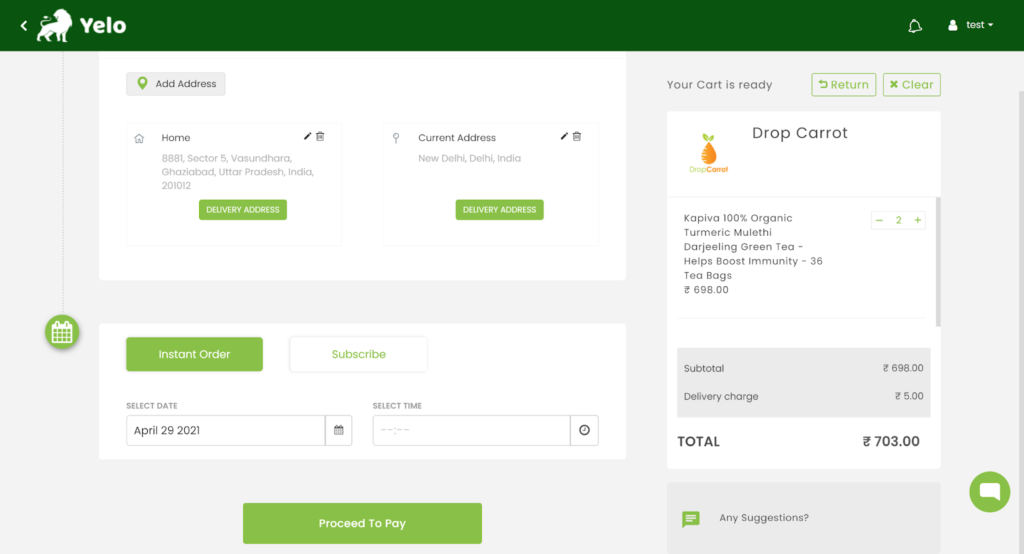
- When the customer chooses the ‘Subscribe’ option, it will look like this.
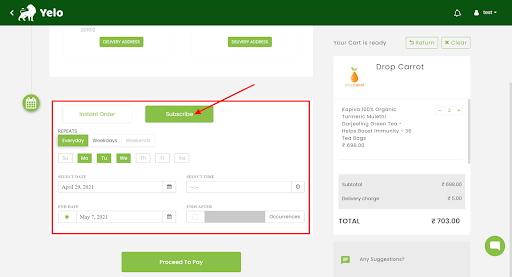
- Next, the customer needs to select the time, date and enter the number of occurrences for the tasks. Then, proceed to pay.
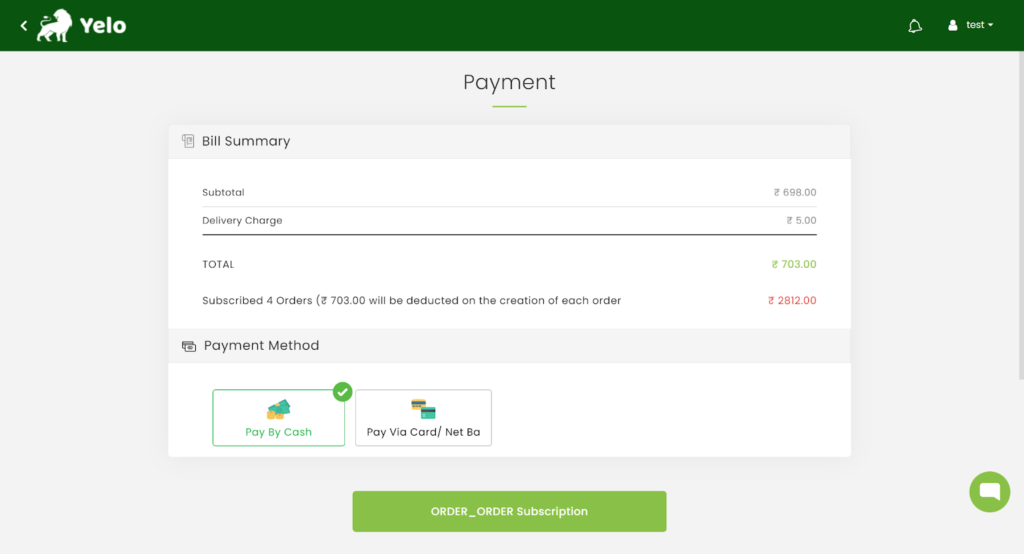
- They can pay by clicking on Order_Order Subscription.
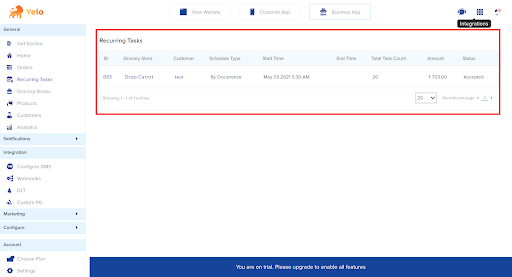
- You can view the subscribed orders under the Recurring tasks tab.
Leave A Comment?