
How to create a Facebook Developer App for “Yelo.red”?
In order to create a Facebook Developer App, kindly follow the steps below:
-
Navigate to https://developers.facebook.com/
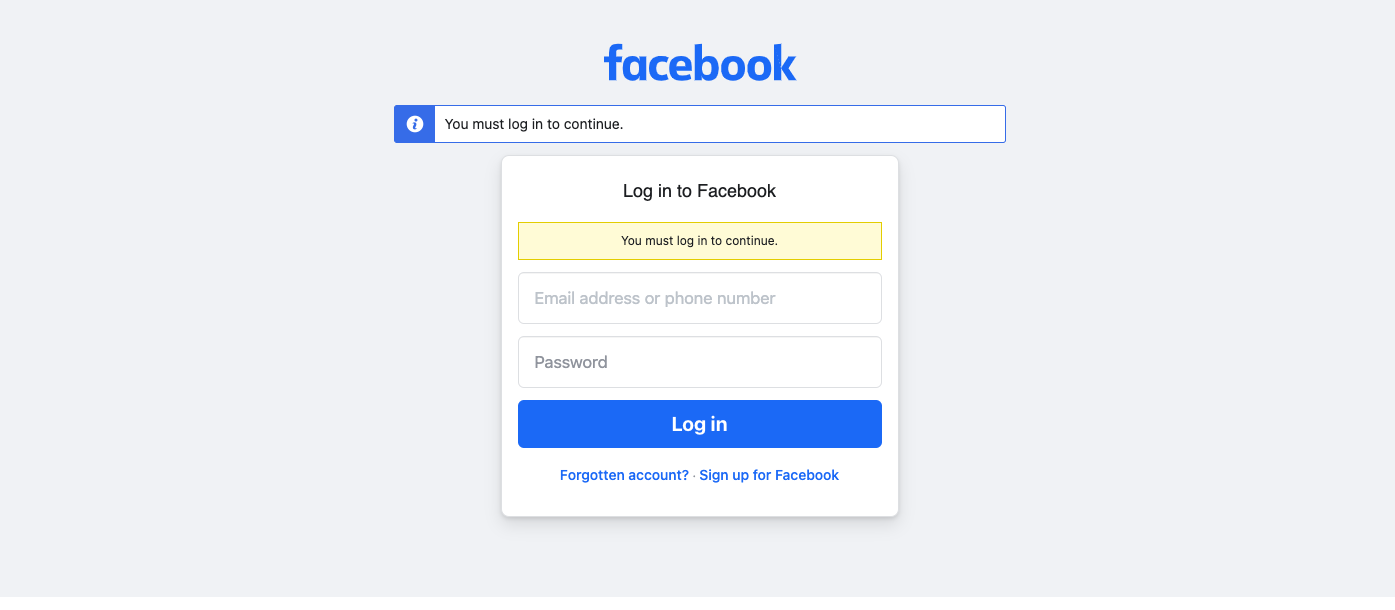
- Login to your Facebook developer account.
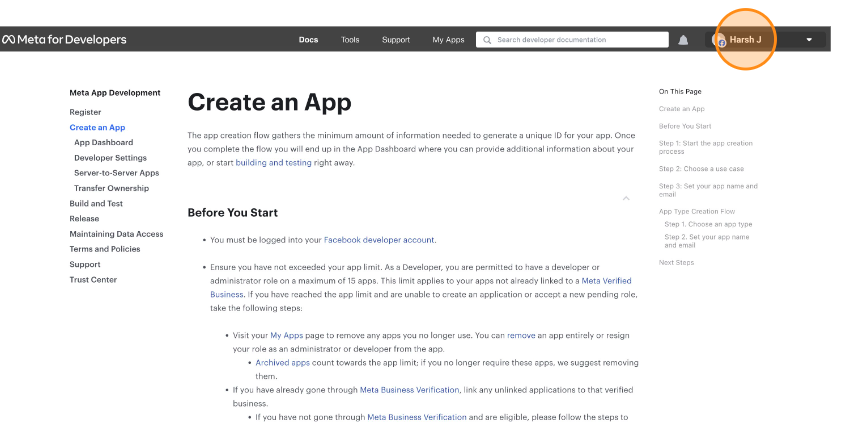
- Once Logged in, go to your profile section on the top right-hand corner of the dashboard and click on your username.
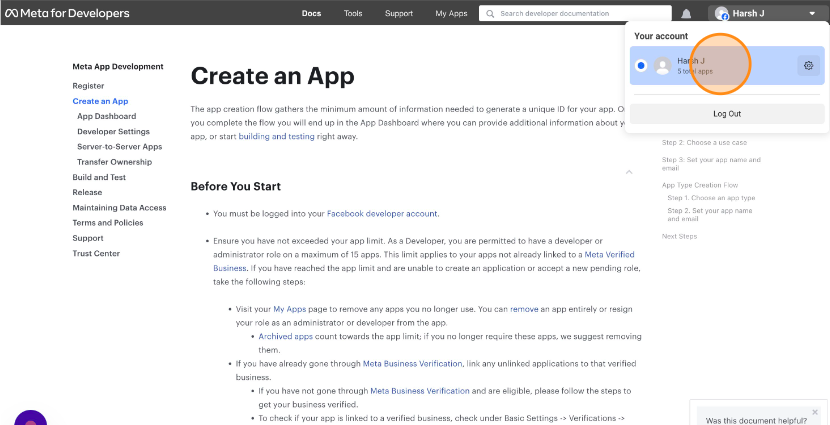
- A box will open. Click on your username in the box.
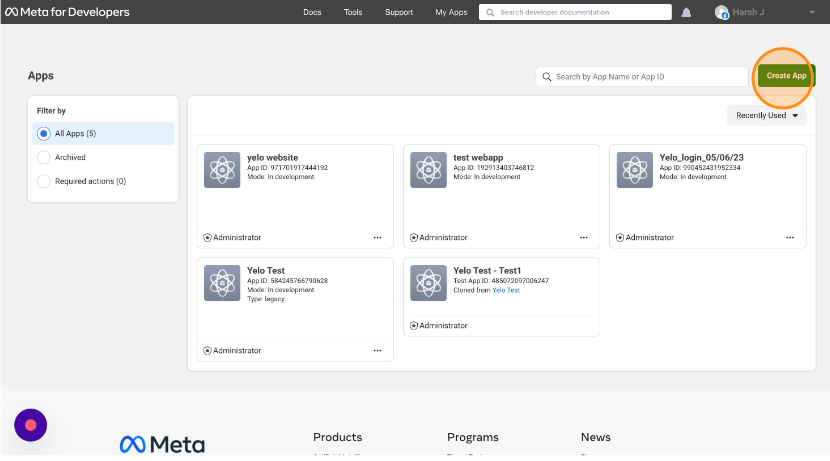
- You will be redirected to your apps page.
- Click on the “Create App” button as shown in the screenshot below.
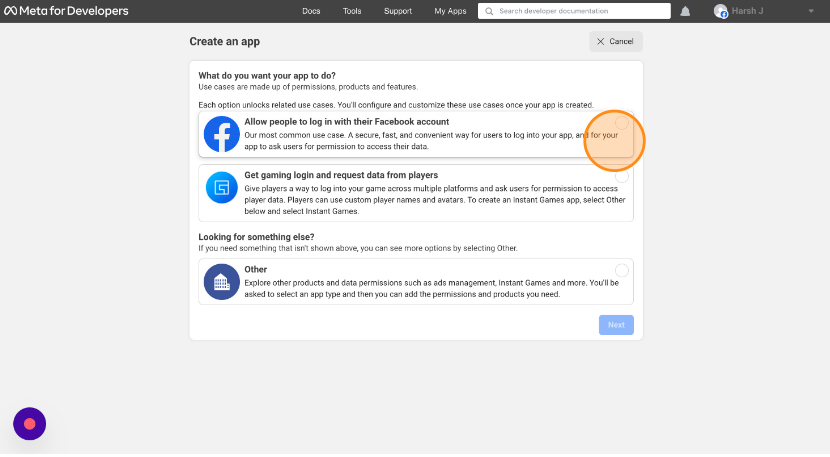
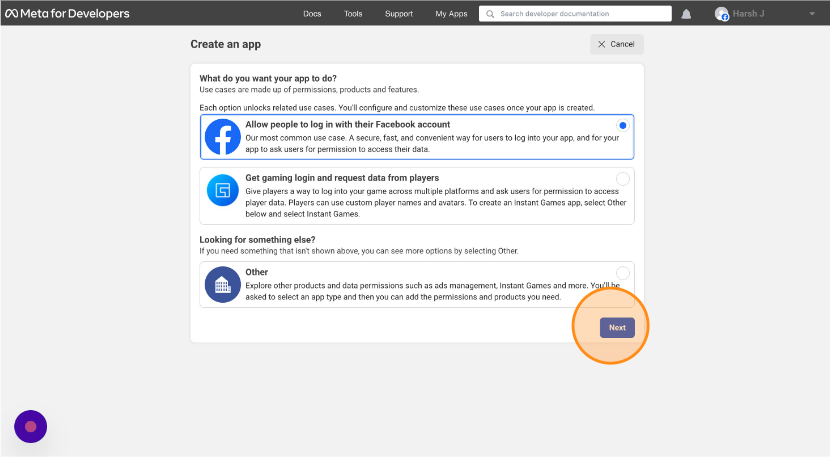
- Click on the option of “Allow people to log in with their Facebook account” and then click on “Next”.
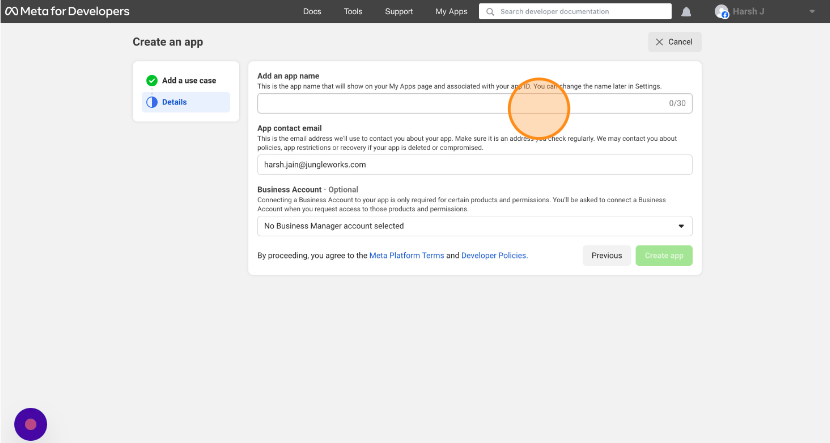
- On the next page enter the application name as “Yelo Website” in the “Add an app name” field.
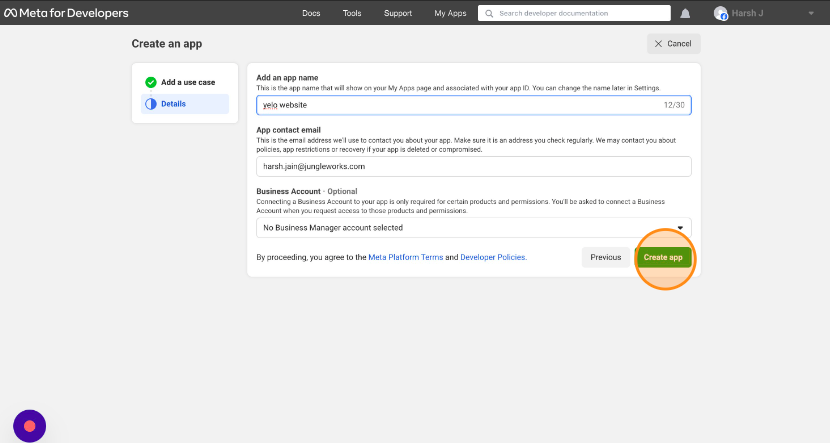
- Next, click on the “Create App” button.
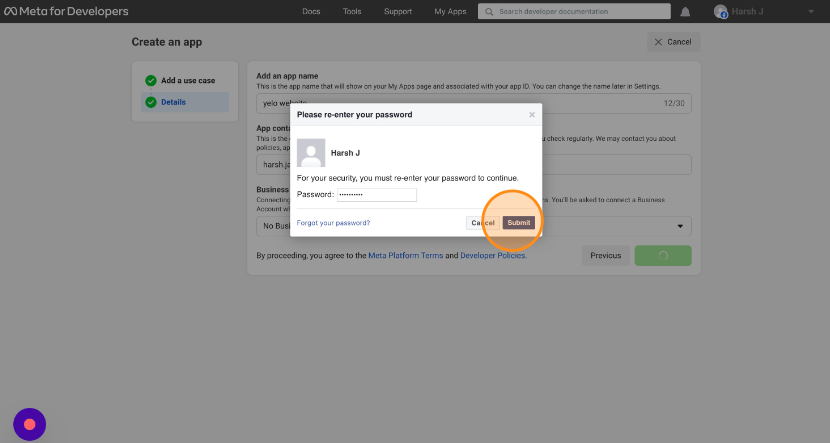
- You will be prompted to enter the password.
- Enter your Facebook developer account password and click “Submit“.
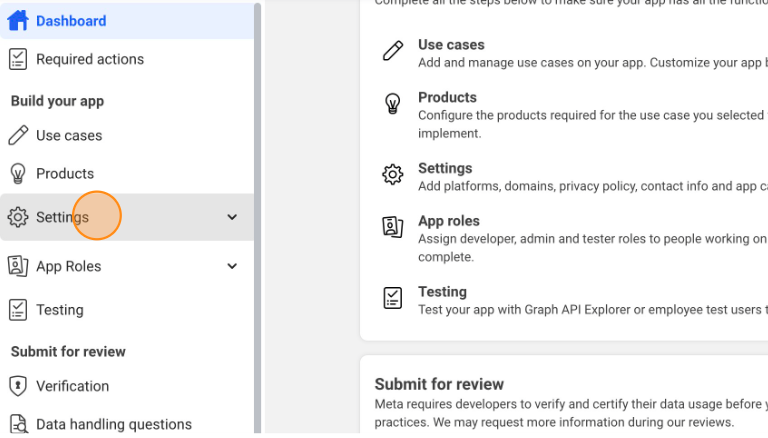
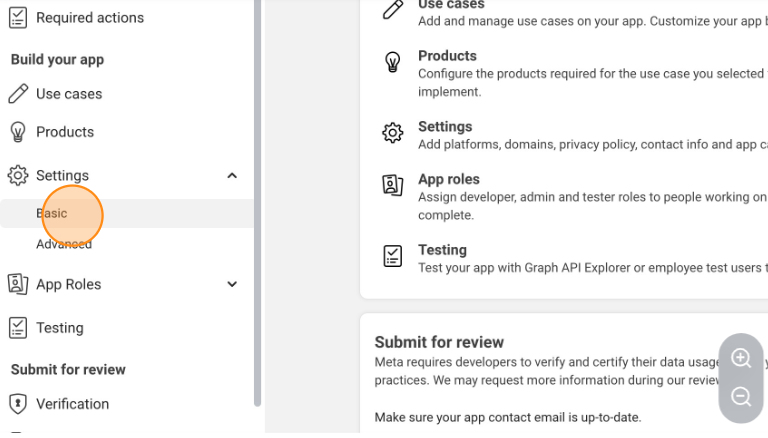
- Go back to the Dashboard>Settings>Basic.
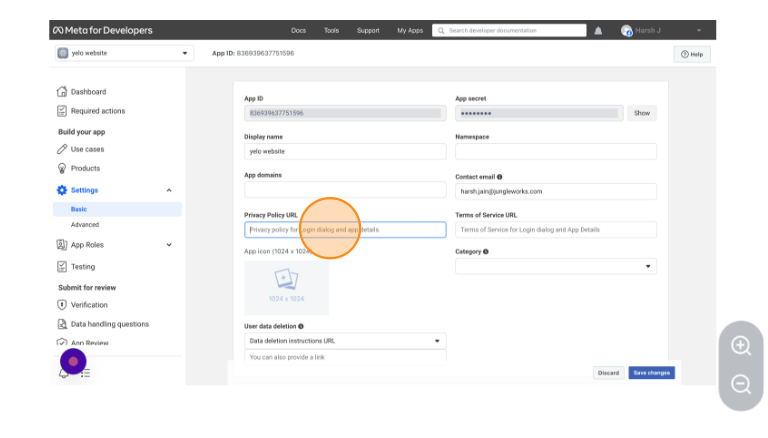
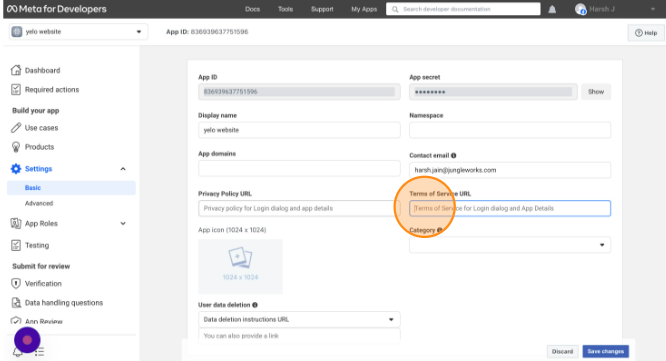
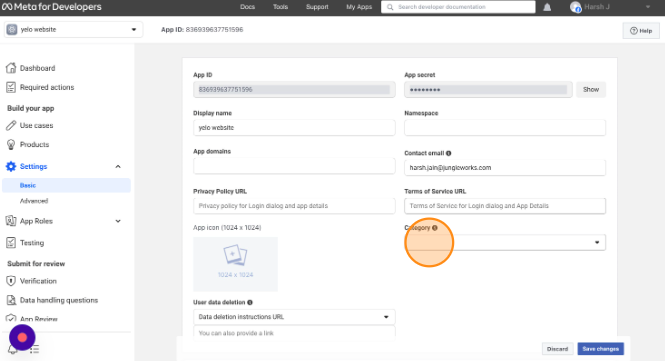
- Enter your privacy policy URL, and terms of service URL and select the application category from the listed options.
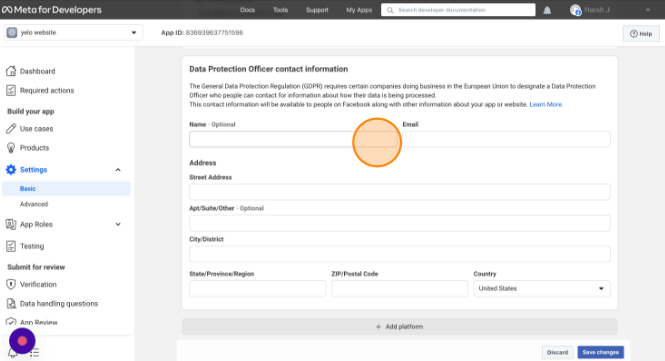
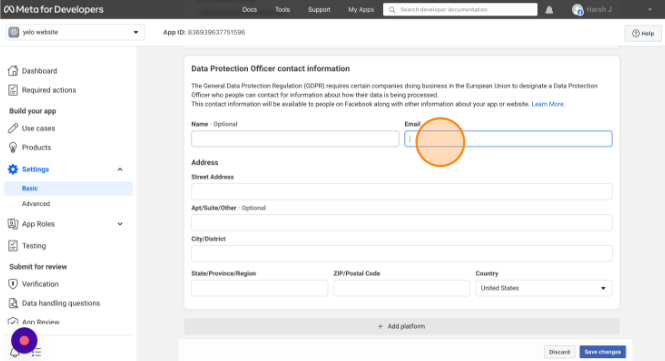
- Next, enter your business name or email, address, city, and zipcode under “Data Protection Officer contact information“.
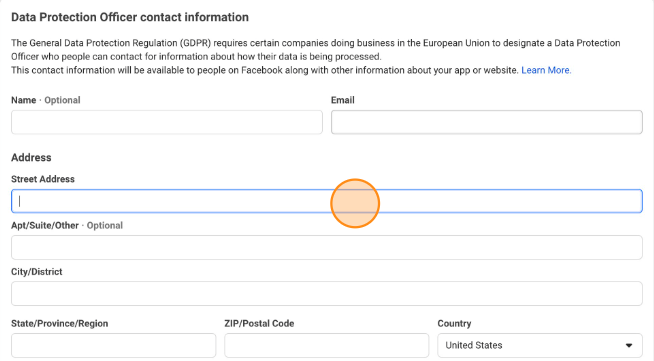
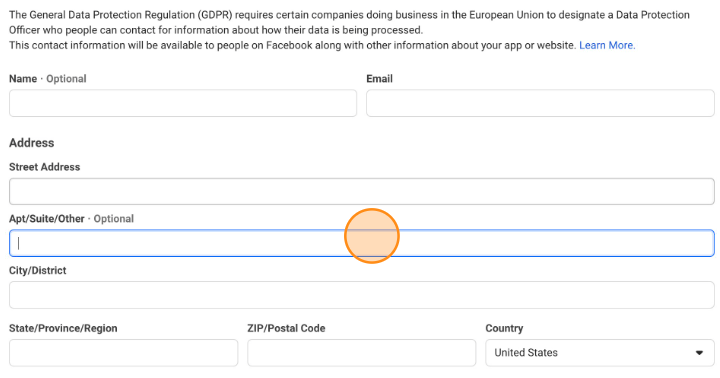
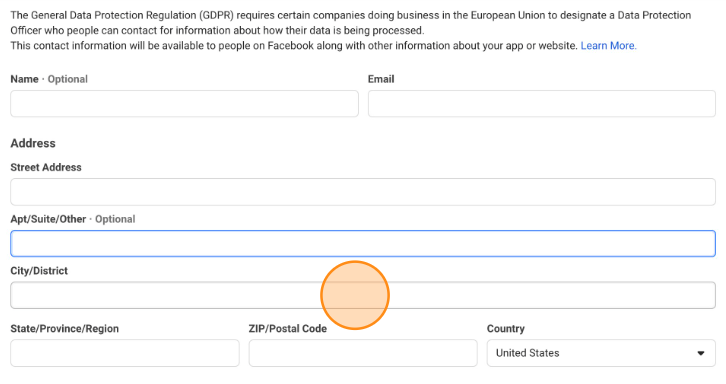
- Next, click on “+ Add platform” button.
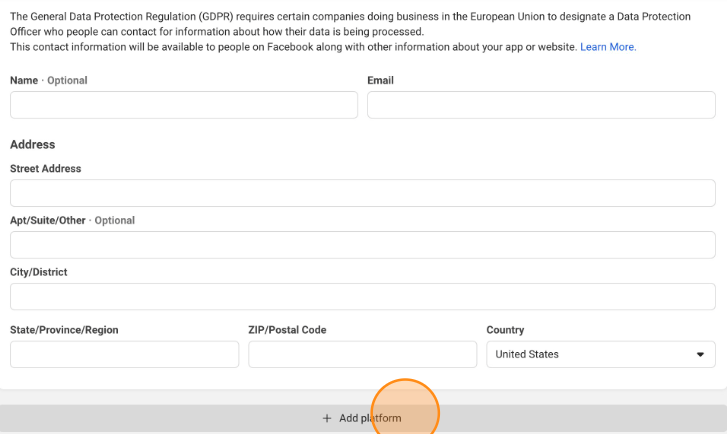
- A dialog box with options to select a platform will appear. Select “Website” and click on “Next“.
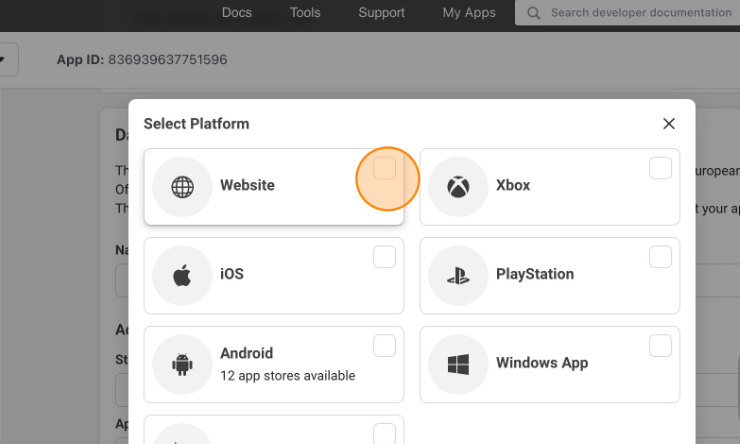
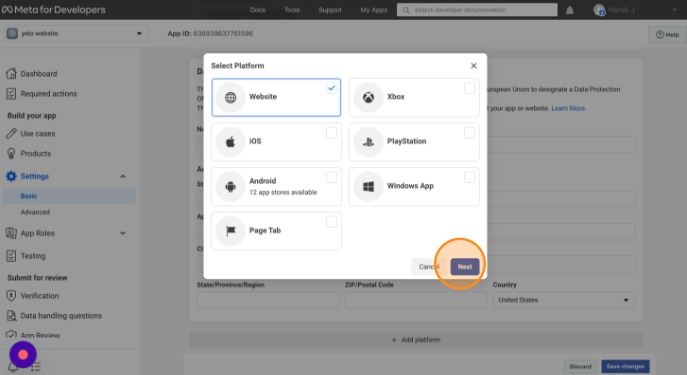
- Now enter the site URL for website as “yelo.red” and click on “Save changes“.
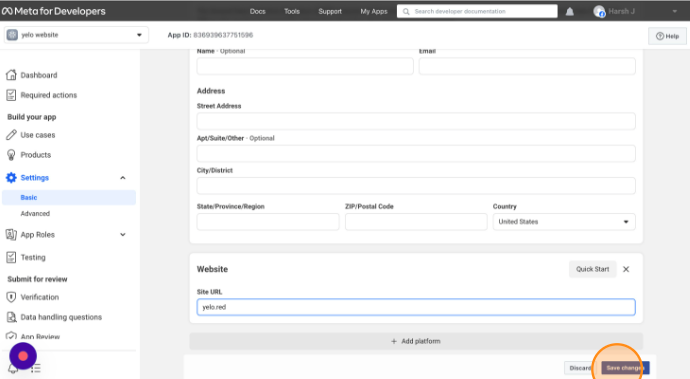
- Go back to the Dashboard>Settings>Advanced. You will be prompted to leave page. Select option of “Leave the page”.
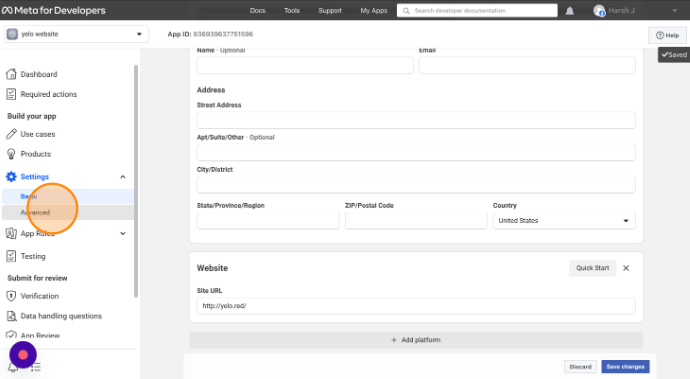
- Under the advanced settings section click on the “Add a Domain” button.
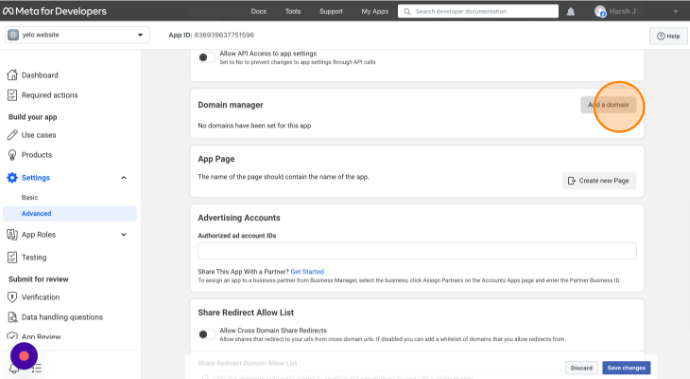
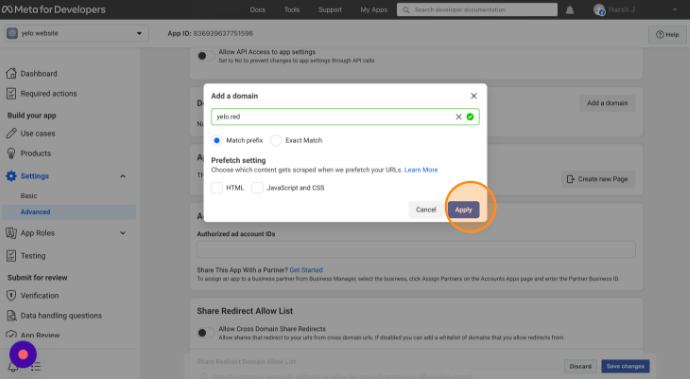
- Enter “yelo.red” in the Enter URL field in the dialog box and click on “Apply” option.
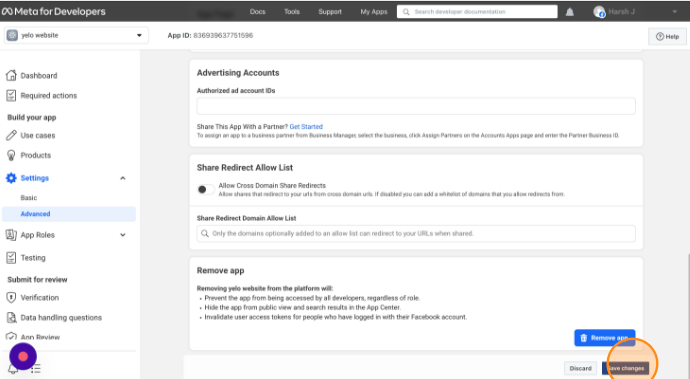
- Next click on “Save changes“.
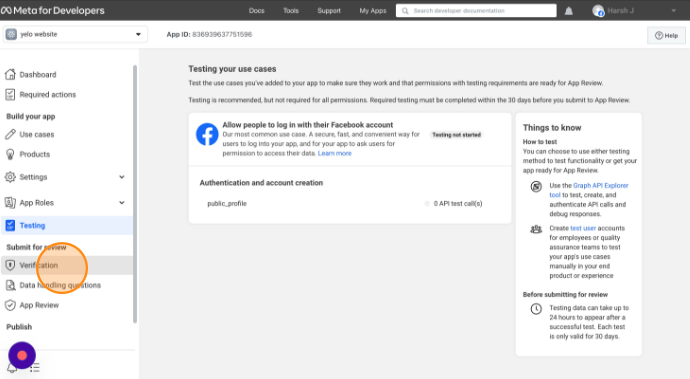
- Go to the Dashboard>Verification and click on the “Start Verification” button.
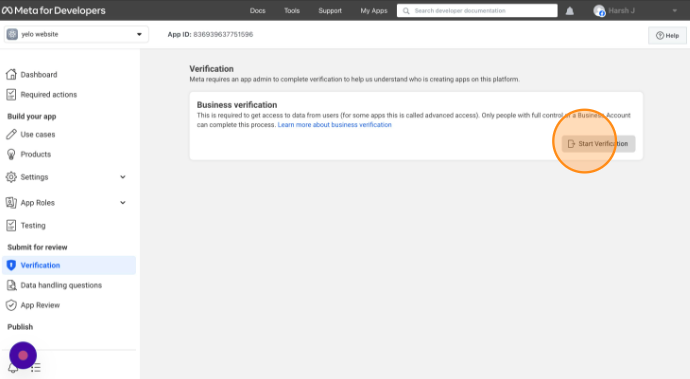
- Next, Go to the Dashboard>App Review and click on the “Request Permissions or Features” button.
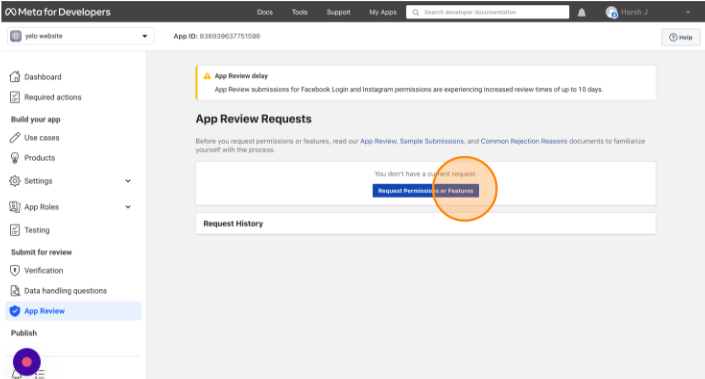
- Go to the Dashboard>Publish>Go Live.
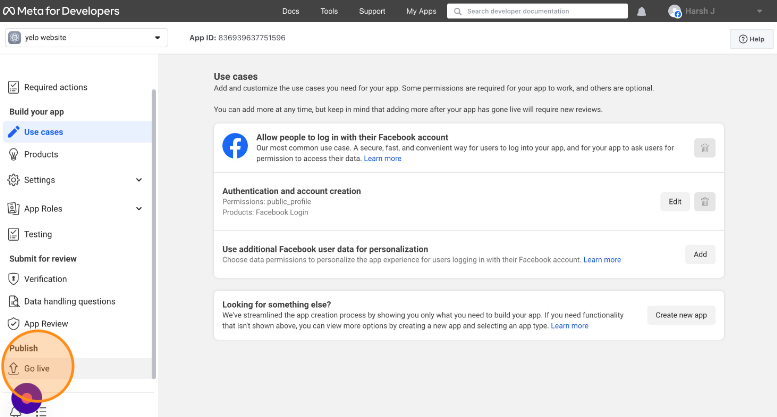
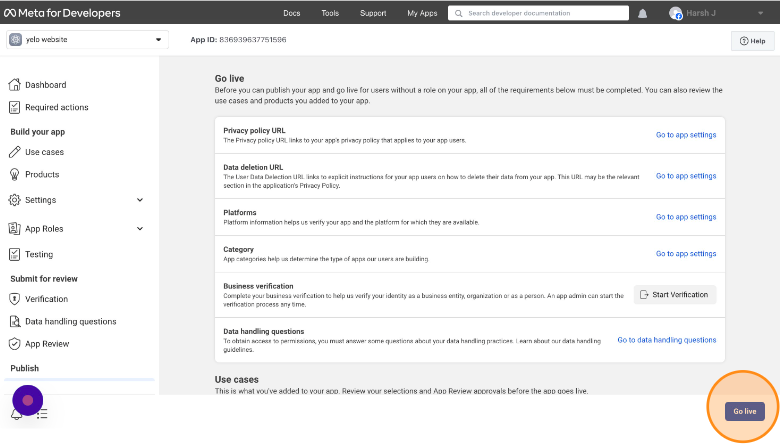
- On the Go Live page, click on “Go Live” button and voila your app is created.
Leave A Comment?