
Add Merchants using CSV File
You can also add merchants in Bulk using the CSV file on Yelo dashboard. All you need is to follow some simple steps.
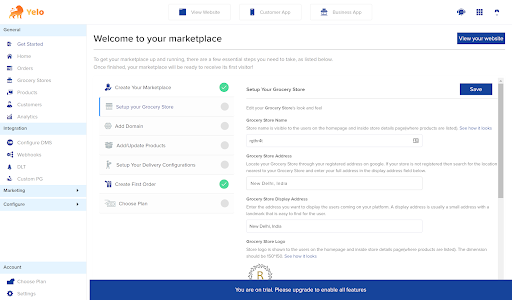
- Log in to the Yelo Admin Dashboard, which looks like this.
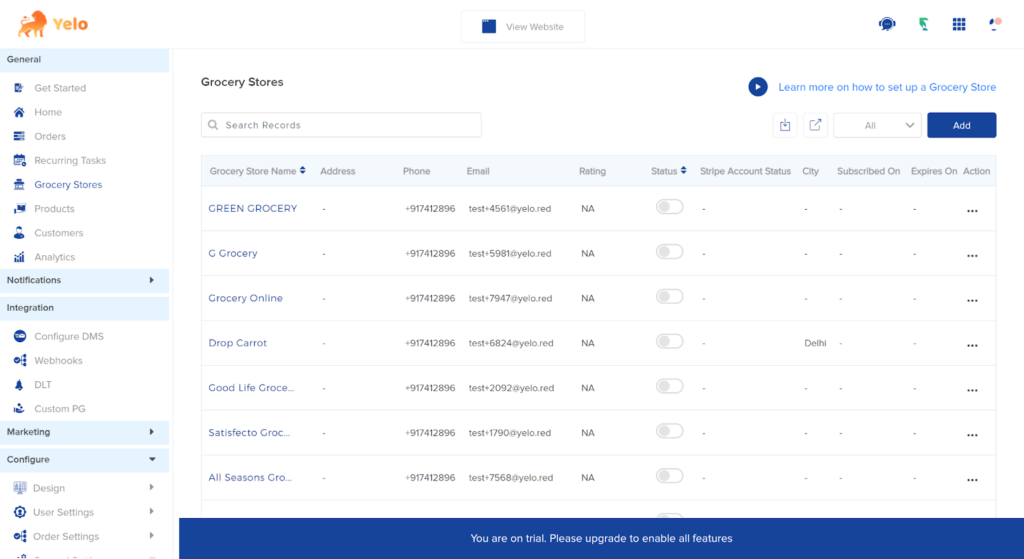
- To the right of the dashboard, find ‘Grocery stores’ and click to open the list of all Grocery stores.
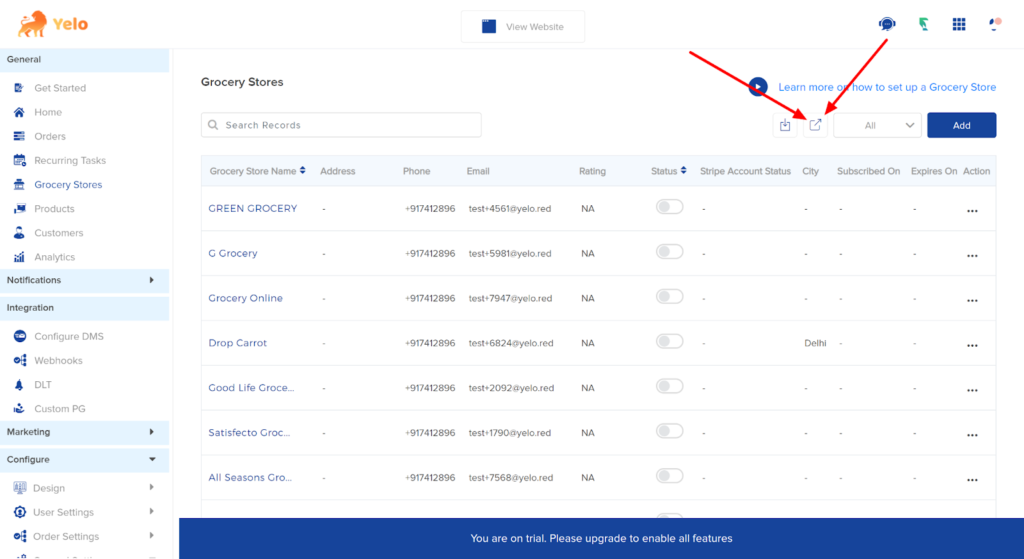
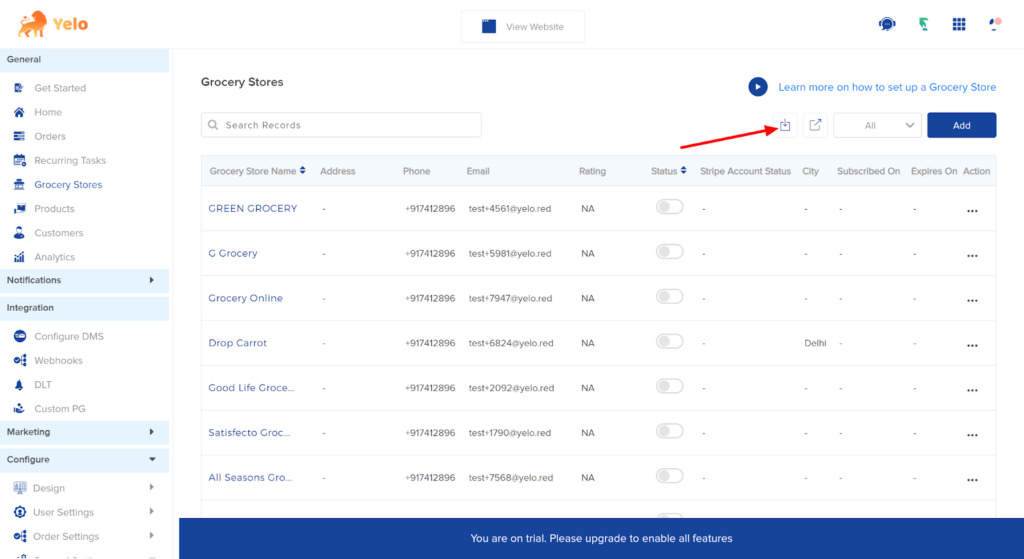
- Find the ‘Export Merchant’ button as shown.
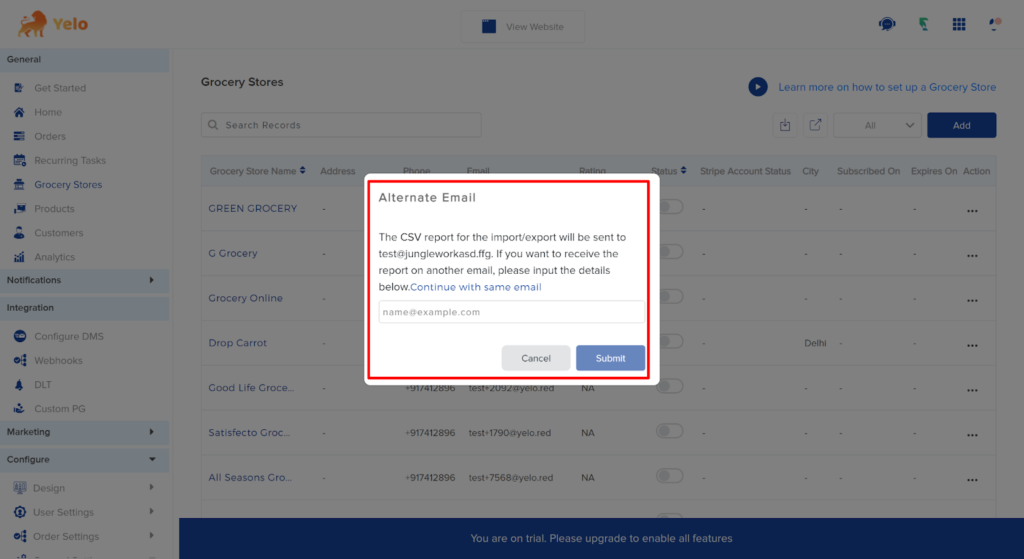
- Enter the email address on which you want to receive CSV files. You can choose to continue with the same email.
- The exported CSV file will look like this.
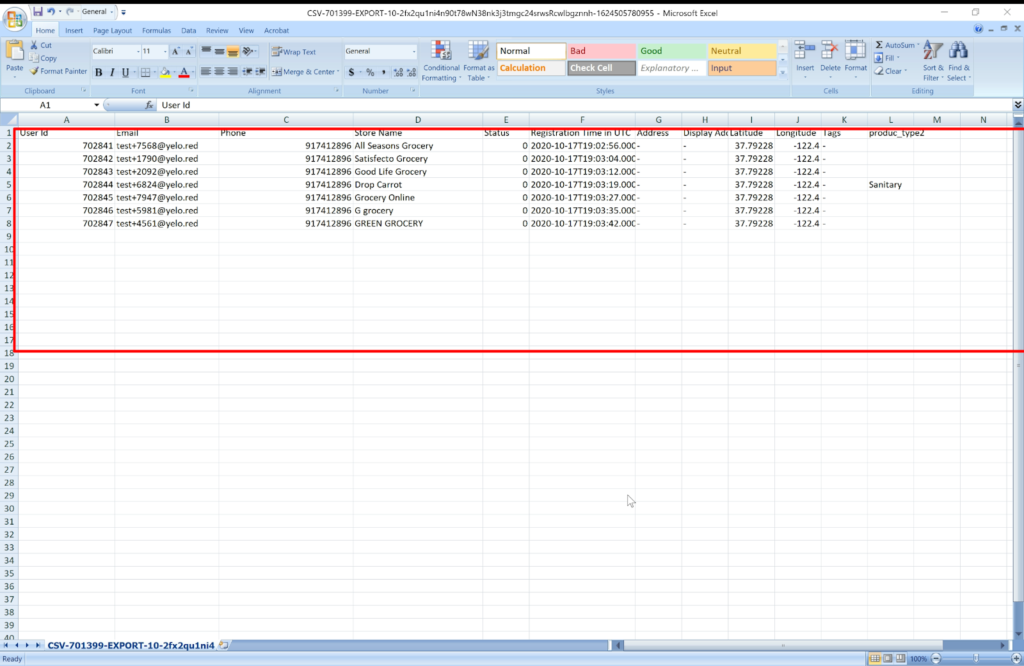
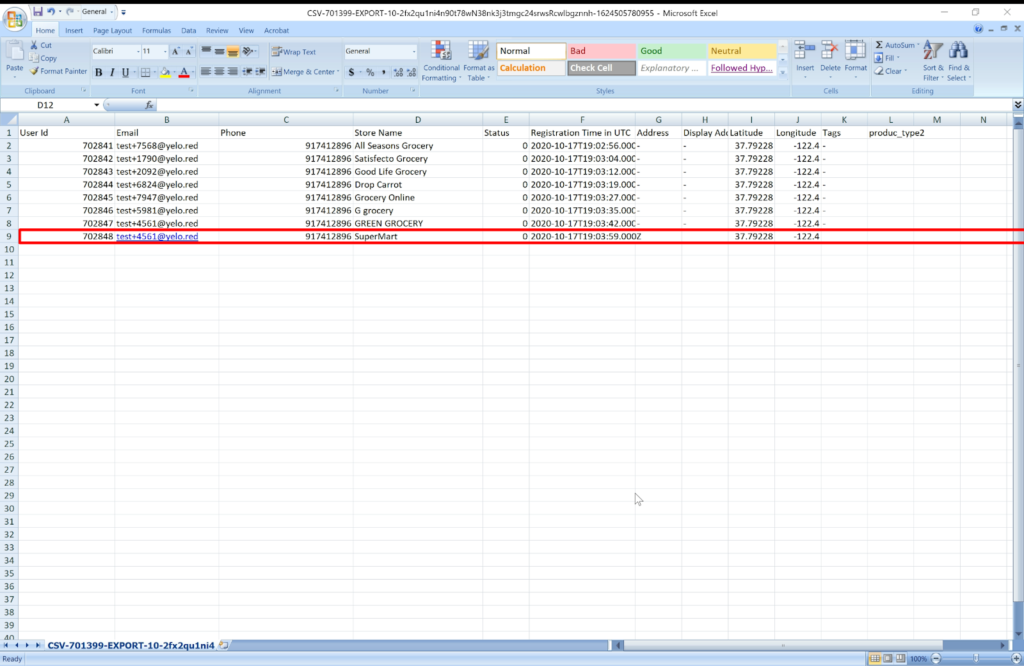
- After adding the new merchant details. Save the CSV file.
- Click on ‘Import’ and upload the CSV file.
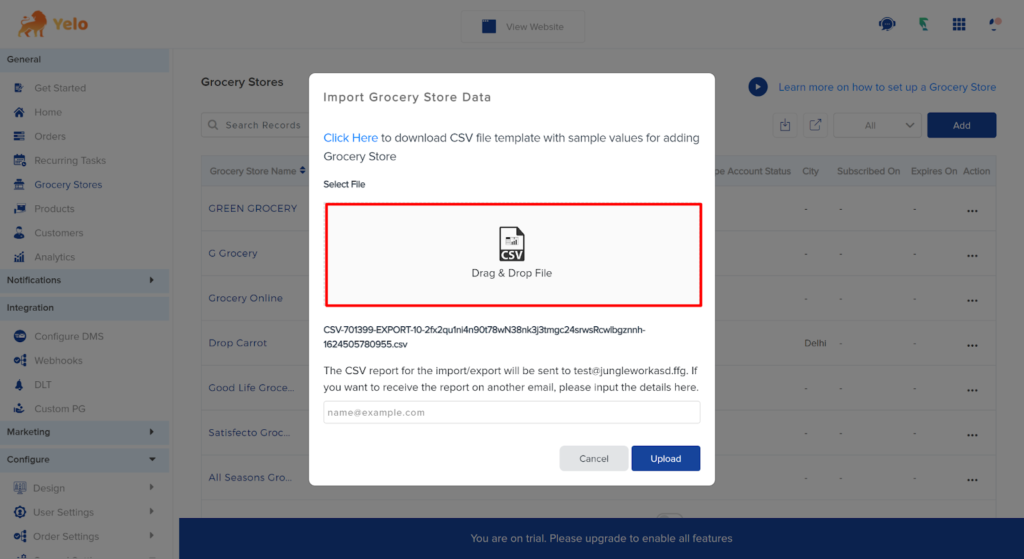
- Drag and Drop CSV file or upload the file to save the merchant settings.
- Now, you have added the merchants in bulk.
Leave A Comment?